How to Stop Muse From Using Your Data for AI Training: Turn Off One Toggle
How to Stop Muse From Using Your Data for AI Training: Turn Off One Toggle
The short version: Muse uses your interactions with it to train Meta’s AI models, and the toggle is on by default — Meta’s own help center says so in plain text. If you don’t want your chats becoming training data, go to Settings → Data controls and turn off “Help improve our AI models.” Three steps, under a minute.
One distinction before we start: opting out of training ≠ turning off Meta AI features. This post is about the first one — whether your data feeds the models. Hiding the AI button is a cosmetic change and has nothing to do with training.
The three steps (with real screenshots)
- Open the Muse app and tap Settings at the bottom of the sidebar.
- Open Data controls.
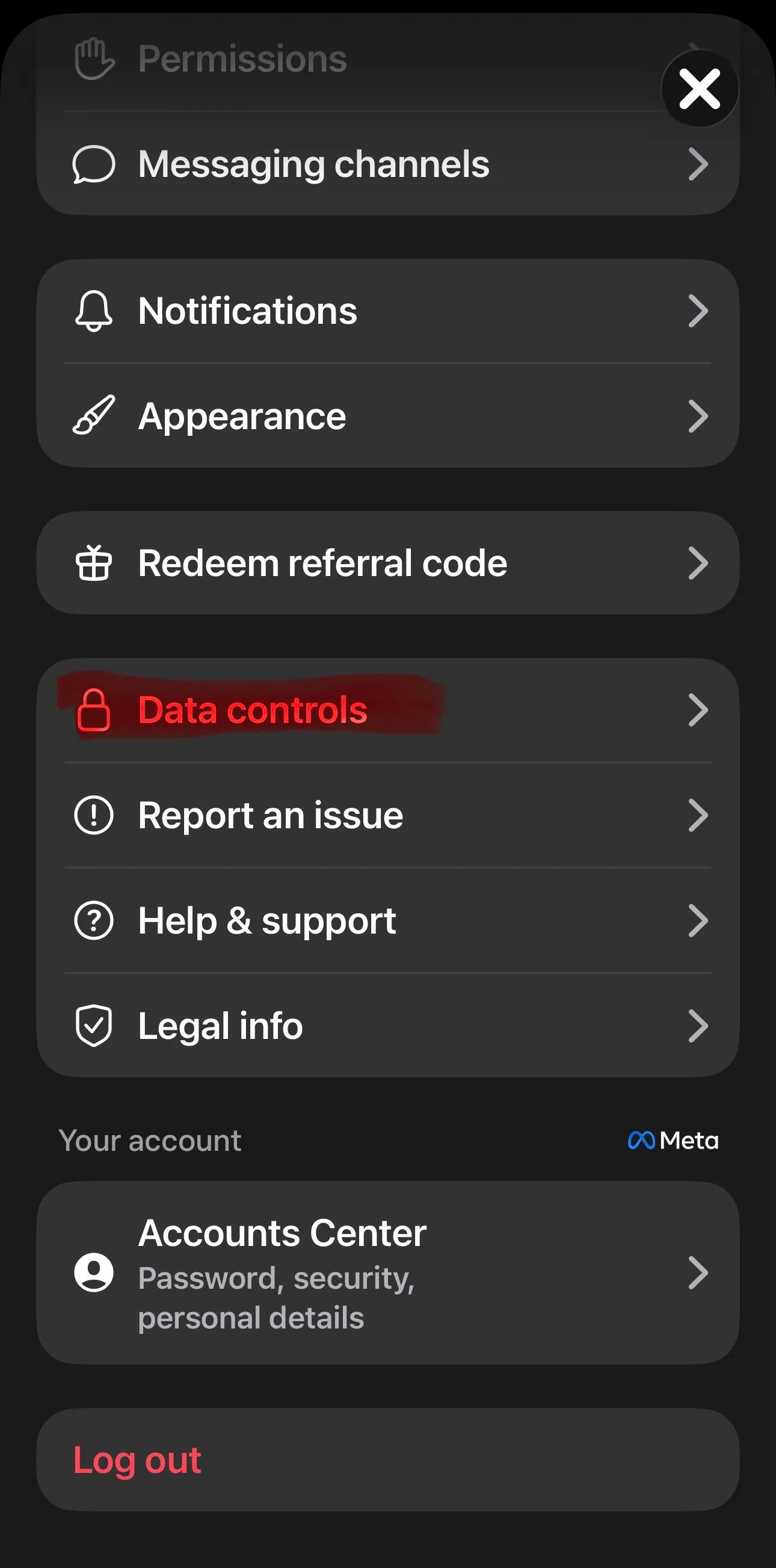
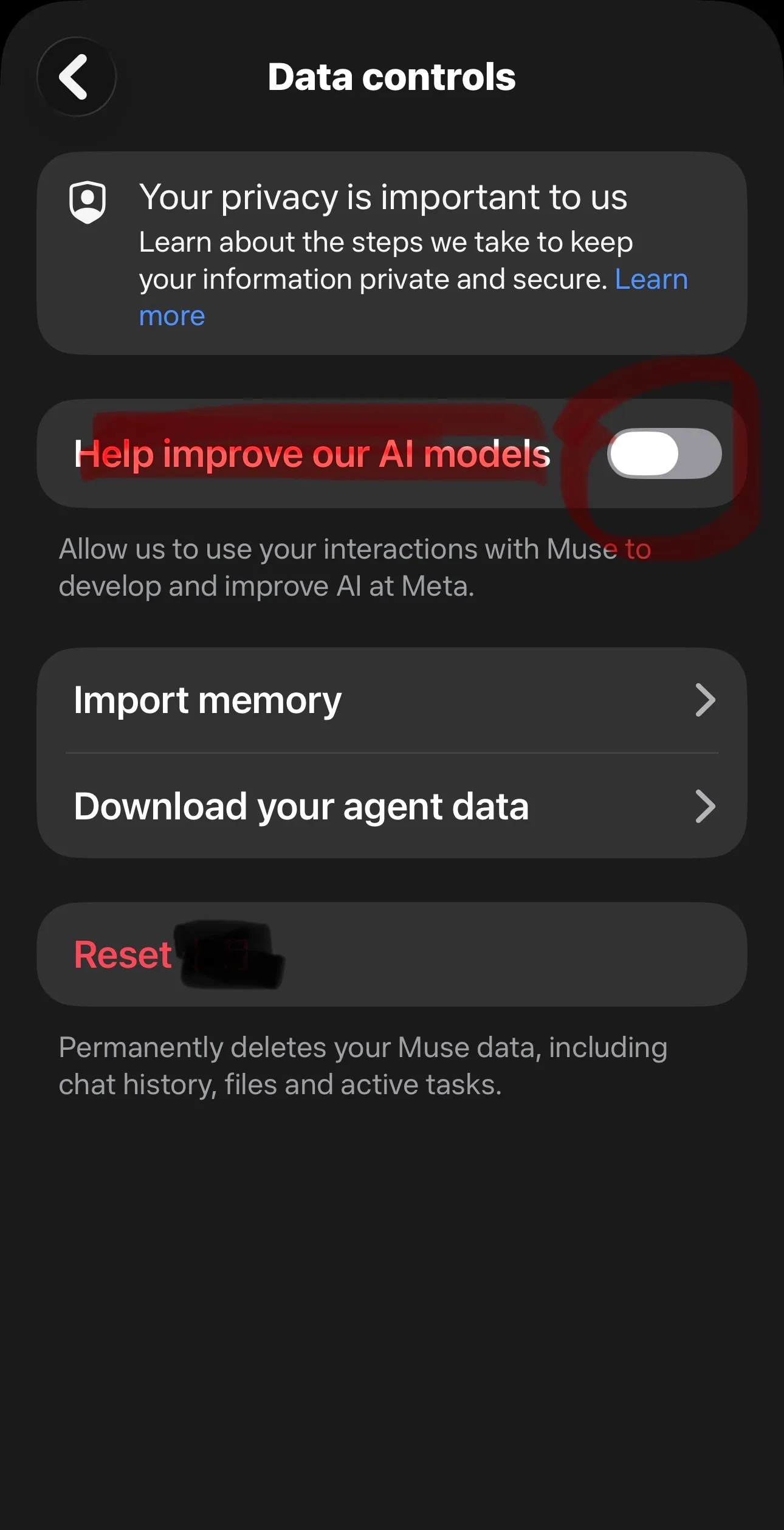
- Toggle off “Help improve our AI models” and confirm with “Turn off.” The screenshot below shows the toggle in its on state — switch it off.
Prefer to watch it? Here’s the whole thing as a short:
What happens after you turn it off
Per Meta’s official help center:
- Your interactions with Muse will no longer be used to develop and improve AI at Meta.
- The change also applies to previous interactions — your old chats are covered too.
- If you leave it on, Meta claims it removes names, email addresses, phone numbers, Social Security numbers and similar identifiers before training, and disassociates the interactions from your account.
Want it gone entirely? Two more controls on the same screen
The toggle handles future training use. If you also want to deal with what’s already stored, on the same screen you can:
- Just ask Muse: ask what it has saved about you, ask to see a file, or tell it to delete something.
- Reset Muse: permanently deletes all information — chat history, files, active work (you can see the red Reset entry at the bottom of the screenshot above). Irreversible. Think before you tap.
You can also delete individual chats from the sidebar: open the chat → delete.
What this toggle does NOT cover (important)
The toggle only covers activity inside the Muse app. It does not reach:
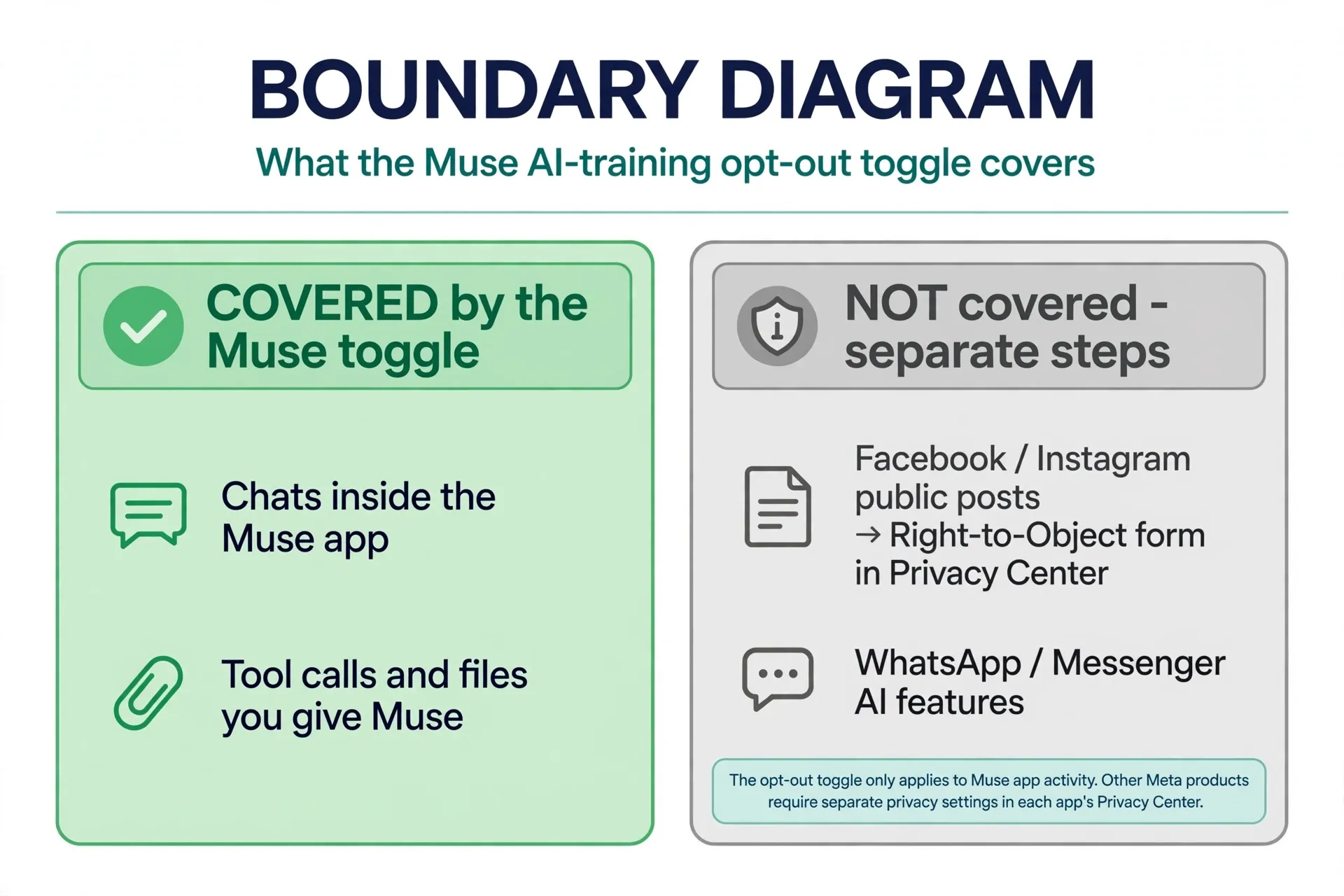
- Facebook / Instagram public posts: Meta trains on these too, but opting out takes a separate route — each app’s Settings → Privacy Center → AI at Meta → submit the Right to Object form. EU/UK users tend to get smoother results; US users have reported mixed outcomes.
- Meta AI inside WhatsApp / Messenger: a separate thing, and the AI itself currently can’t be fully turned off — only muted or hidden. Muting ≠ opting out of training. Don’t confuse the two.
- Hiding the Meta AI button: purely cosmetic, zero effect on training data.
The one-line summary
Using Muse means your data feeds training by default — but the exit is official and real: Settings → Data controls → turn off “Help improve our AI models.” It stops training, not functionality; Muse keeps working. Facebook/Instagram public posts need their own opt-out path — don’t expect one toggle to cover everything.
References
- Meta Help Center — How to manage your Muse data — training toggle on by default, how to turn it off, applies to past interactions, PII removal claim.
- Business Insider — How to stop Meta from training on your Muse data — the three steps, Reset Muse permanently deletes, Muse conversations not shared with the ads system.
- Engadget — How To Get Started With Meta’s New AI Agent, Muse — recommends switching the permissions tab to “always ask.”
- 經理人 (Manager Today) — Meta AI 助理 Muse 是什麼? — de-identified conversations used for training by default, user can opt out in settings.
- Fello AI — How to Turn Off Meta AI in 2026 — Meta AI on Facebook/Instagram/WhatsApp can’t be fully disabled; mute or hide only.
- Izoate — How to Opt Out of Meta AI Training (2026) — the Right to Object form as the formal opt-out path for Facebook/Instagram training.
Don't just read it — run the first job this week
Subscribe and get a 7-day validation checklist.
Subscribe free